
If captions suddenly appear on your phone, you might wonder which setting turned them on and how to make them disappear. Sometimes, the words appear over every video, while other times, they show up only in YouTube or another app. The fix depends on where those captions come from.
I’ll walk you through how to turn off captions on Android, including Samsung phones, YouTube videos, and Android’s Live Caption feature. You’ll also learn what to do if captions keep coming back or appear in apps such as X (formerly Twitter).
How to Turn Off Captions on Android
The quickest way to turn off captions on Android is to check your phone’s Accessibility settings. If Live Caption is enabled, you can usually disable it there or through your phone’s volume controls.
Follow these steps:
- Open Settings on your Android phone.
- Tap Accessibility.
- Look for Live Caption, Caption preferences, or a similarly named option.
- Open the relevant setting.
- Turn off Live Caption if it is enabled.
The exact menu names vary by Android version and phone manufacturer. Also, turning off Live Caption will not necessarily disable subtitles that are built into a video or enabled inside an app.
If captions appear only while watching a particular video, check that app’s playback settings instead.
How to Turn Off Captions on Samsung Phones
Samsung Galaxy phones have several caption-related settings, so the right solution depends on the type of captions you see.
Turn Off Live Caption on Samsung
These steps may vary slightly depending on your Galaxy model and One UI version.
- Open Settings.
- Select Accessibility.
- Look under Hearing enhancements for caption-related options, or use the Settings search bar.
- Search for Live Caption.
- Open the setting and switch it off if it is enabled.
On some Samsung phones, Live Caption can also be accessed through the volume panel.
Turn Off Samsung’s Automatic Captions Using the Volume Panel
If your phone displays a caption icon when you adjust the volume, try this method:
- Press either volume button.
- Expand the volume panel if necessary.
- Look for the Live Caption icon.
- Tap it to turn the feature off.
If the icon is missing, use Settings search to find Live Caption.
Turn Off Subtitles on a Samsung Video
If captions appear only in a video player, pause the video and look for a CC, Subtitles, or Captions button. Select Off or None.
Samsung’s system caption settings and an app’s subtitle controls are different. Changing one may not affect the other.
How to Turn Off Closed Captions on Your Android Phone
Closed captions can appear because of your phone’s accessibility settings, even when Live Caption is not running. If you want to disable system-wide captions, look for Caption preferences.
Try these steps:
- Open Settings.
- Tap Accessibility.
- Select Caption preferences or search for “Captions” in Settings.
- Find the Show captions option.
- Turn it off if available.
On some Android phones, this setting controls supported closed captions, while Live Caption has a separate switch. If the words remain on your screen, check the app where you’re watching the video.
For example, a phone-wide caption setting may not remove subtitles that are permanently embedded in a video.
How to Turn Off Subtitles on YouTube for Android
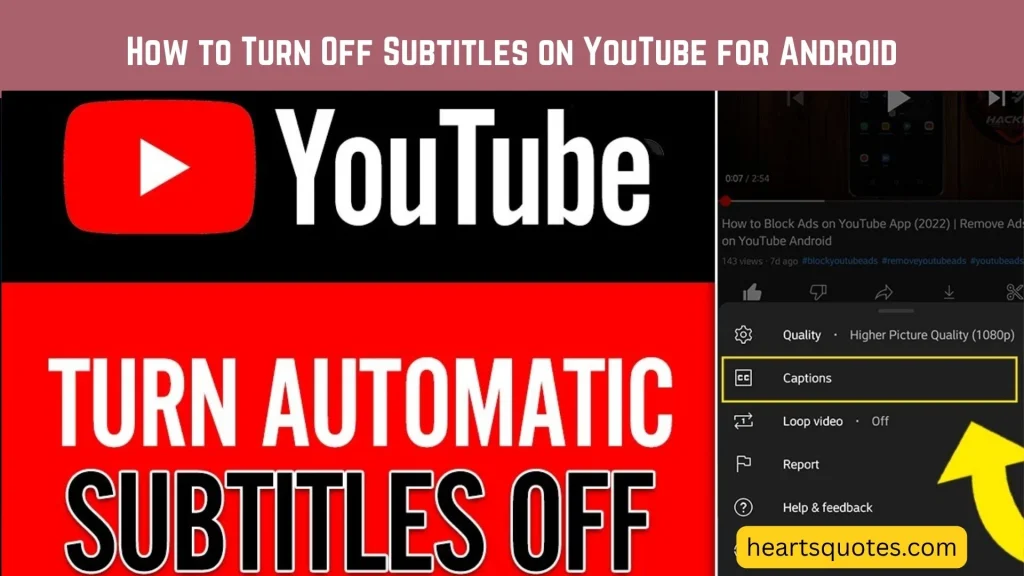
If captions appear only in the YouTube app, you usually don’t need to change your phone’s accessibility settings. You can turn off subtitles directly in the video player.
Turn Off Captions on an Individual YouTube Video
- Open the YouTube app.
- Play the video with subtitles.
- Tap the video to show the playback controls.
- Tap the CC button to turn captions off.
If you don’t see the CC button, tap the gear icon and look for the Captions menu. Choose Off if that option appears.
These controls may look different depending on the app version and video.
Stop YouTube From Showing Captions Automatically
If subtitles keep appearing on different videos, check your default caption preferences.
- Open YouTube.
- Tap your profile picture.
- Select Settings.
- Open Captions.
- Turn off Show captions if the option is available.
You can also check the video’s Show when muted setting. YouTube offers this option on mobile and tablet, and it may explain why subtitles appear when your phone is muted.
Keep in mind that YouTube’s default caption settings and Android’s Live Caption feature are separate. You may need to disable both if captions appear across different apps.
How to Turn Off Captions on X (Twitter) for Android
If captions appear on videos in X, formerly Twitter, first check whether they are optional video subtitles or text permanently included in the video.
Try the following:
- Open X on your Android phone.
- Find the video displaying captions.
- Look for a CC button or open the video’s menu.
- If a caption control is available, select it to turn captions off.
The location of this control can depend on how you’re viewing the video. X also notes that captions may appear automatically in the timeline on mobile devices.
If the video has no caption toggle, try turning off Android’s Live Caption feature. This may remove automatically generated text, but it won’t remove words that are part of the original video image.
Why Captions Keep Appearing on Your Phone
Turning captions off once may not solve the problem if another setting or app is responsible. Here’s how to identify the likely cause.
| What you see | What to check |
| Captions appear in several apps | Android Live Caption |
| Captions appear only on YouTube | YouTube player and caption preferences |
| Captions appear only on X videos | X video caption controls |
| Captions remain in a downloaded video | Whether subtitles are embedded in the video |
| Captions appear when the volume is muted | Live Caption or YouTube’s Show when muted setting |
| A caption box floats over the screen | Android’s Live Caption feature |
What If You Can’t Find the Caption Setting?
Open your phone’s Settings and use the search bar to search for Live Caption, Caption preferences, or Captions.
If you still can’t find the option, your phone may use a different menu layout or may not support that particular feature. Check your manufacturer’s support instructions for your specific model.
What If Captions Return After Restarting?
Check both system and app-level settings. For example, you might turn off Live Caption but still have YouTube’s Show captions preference enabled.
If you’ve checked both and captions still appear, update the relevant app and restart your phone. Then test a different video to see whether the problem occurs everywhere or only in one app.
How to Turn Off Live Caption in Chrome or Captions on a TV
The steps are different if captions appear in a desktop browser or on your television. Android phone settings won’t control every device.
Turn Off Live Caption in Chrome
If captions appear while playing audio or video in Google Chrome on a computer:
- Open Chrome.
- Click the three-dot menu and select Settings.
- Open Accessibility.
- Find Live Caption.
- Turn the feature off if it is enabled.
Chrome’s Live Caption setting is separate from Android’s Live Caption setting. If you are using Chrome on your phone, check your Android settings as well.
Turn Off Captions on a TV
For captions on a television, open the TV’s settings or the video player’s playback menu.
Look for Subtitles, Closed Captions, or CC, then select Off. Some streaming apps have their own subtitle settings, so you may need to disable captions inside the app instead of the television’s main settings.
Frequently Asked Questions
How do I turn off captions on Android quickly?
Press a volume button and look for the Live Caption icon in the volume panel. Tap it to disable Live Caption. If that doesn’t work, search for Live Caption in your phone’s Settings.
Why are captions showing on every video on my Samsung phone?
Samsung’s Live Caption feature may be enabled. Open Settings, search for Live Caption, and switch it off. If captions appear only in one app, check that app’s subtitle settings instead.
How do I turn off automatic captions in the YouTube app?
Open a YouTube video, tap the CC button or open the playback settings, and select Off. If captions keep appearing, check YouTube Settings under Captions and disable Show captions if available.
Does turning off Live Caption remove subtitles from every app?
No. Live Caption controls automatically generated captions on supported audio and video. Subtitles selected within an app and text embedded in a video may remain visible.
How do I turn off captions without disabling other accessibility features?
Disable only the setting responsible for the captions. For example, turn off Live Caption if it generates floating text, or disable subtitles in YouTube if they appear only there. You don’t need to turn off other accessibility features.
Conclusion
Learning how to turn off captions on Android is easier once you identify where the text comes from. Start with Live Caption in your phone’s settings, then check Samsung’s caption preferences or the controls inside YouTube and X if necessary.
I recommend changing one setting at a time and testing another video afterward. That way, you can remove unwanted captions without changing accessibility settings you still need.

I am Ethan Whitmore, a writer who believes that words have the power to inspire, motivate, and bring people closer to their dreams. I love creating meaningful content that captures emotions, life lessons, and moments of reflection. My writing focuses on confidence, personal growth, relationships, and the simple truths that make life beautiful.
Through my books, I share stories and ideas that encourage readers to stay strong, embrace challenges, and find inspiration in everyday experiences. My goal is to create words that connect with hearts and leave a lasting impact.
Books by Ethan Whitmore:
- The Confidence Edge: Bold Moves for Unshakable Self-Belief
- Resilient by Design: Proven Strategies to Thrive Through Life’s Challenges
 Amelia Hartwell